Web Design·Nadia Brooks·
Website Accessibility Basics for Small Teams in 2026

Accessibility is not a specialist project. Most failures are ordinary design decisions that a small team can fix in an afternoon.
Key facts
- Accessibility is cheaper when it is part of the build, not a retrofit
- Keyboard navigation and visible focus catch many failures early
- Alt text describes purpose, not decoration
- Labels belong on form fields, not only in placeholder text
Accessibility has a reputation as a compliance project with a large price tag. In practice, most barriers are ordinary design decisions: grey text on a white background, a button that only works with a mouse, a form that relies on placeholder text, a heading used because it looked the right size.
A small team does not need a specialist audit to fix the common cases. It needs a short checklist, a keyboard and the willingness to test the page the way a different person would meet it.
Start with contrast and text size
Text should be readable without squinting. That means enough contrast against the background and a base size that does not shrink to fit a design. Light grey captions and thin fonts look elegant on a large monitor and disappear on a phone in daylight.
Test with the page zoomed to 200 percent. If the layout breaks, hides content or requires horizontal scrolling for paragraphs, the design is fragile. Text should reflow, not overflow.

Keyboard and focus
Put the mouse away and tab through the page. You should be able to reach every link, button and form field, and you should always be able to see where you are. A visible focus ring is not ugly; it is the equivalent of a cursor for someone who does not use one.
Watch for keyboard traps: a menu or modal that captures focus and will not let go. Every overlay should close with Escape, and the focus should return to the element that opened it.
If a page only works with a mouse, it does not work for everyone who pays for the same internet.
Alt text, headings and links
Alt text describes the purpose of an image, not its appearance. A product photo should name the product; a decorative divider should have empty alt text so a screen reader can skip it. Do not begin with the words image of, because the screen reader already says that.

Use headings in order. One h1 for the page, then h2 for sections and h3 for subsections. Heading levels are structure, not a font-size menu. Link text should make sense out of context: read more tells a screen-reader user nothing, while read the checkout guide does.
Forms and feedback
Every field needs a visible label. Placeholder text disappears as soon as someone types, and it is often the only instruction a form provides. Put the label above the field, mark required fields in text and explain errors next to the field that caused them.
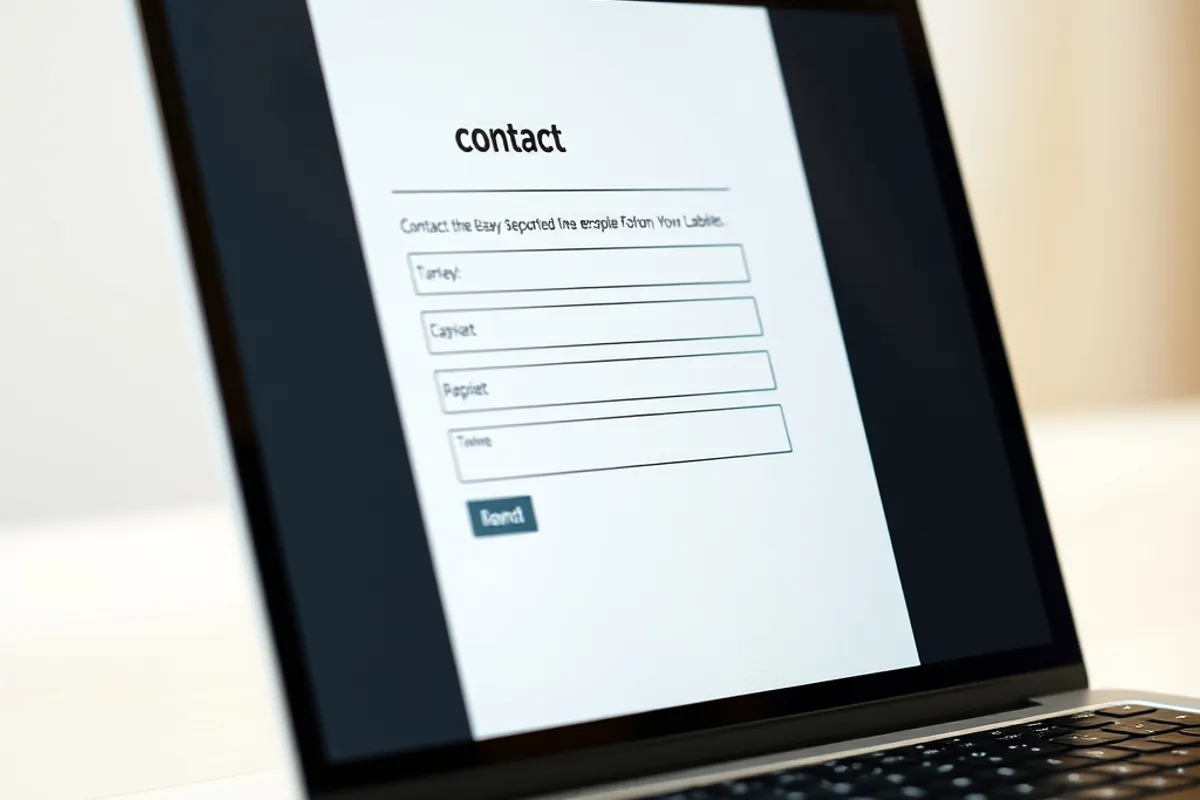
Announce success and failure with a live region so assistive technology hears the result. A green border alone is not feedback for someone who cannot see it. The same rule applies to loading states and disabled buttons.
A checklist you can finish
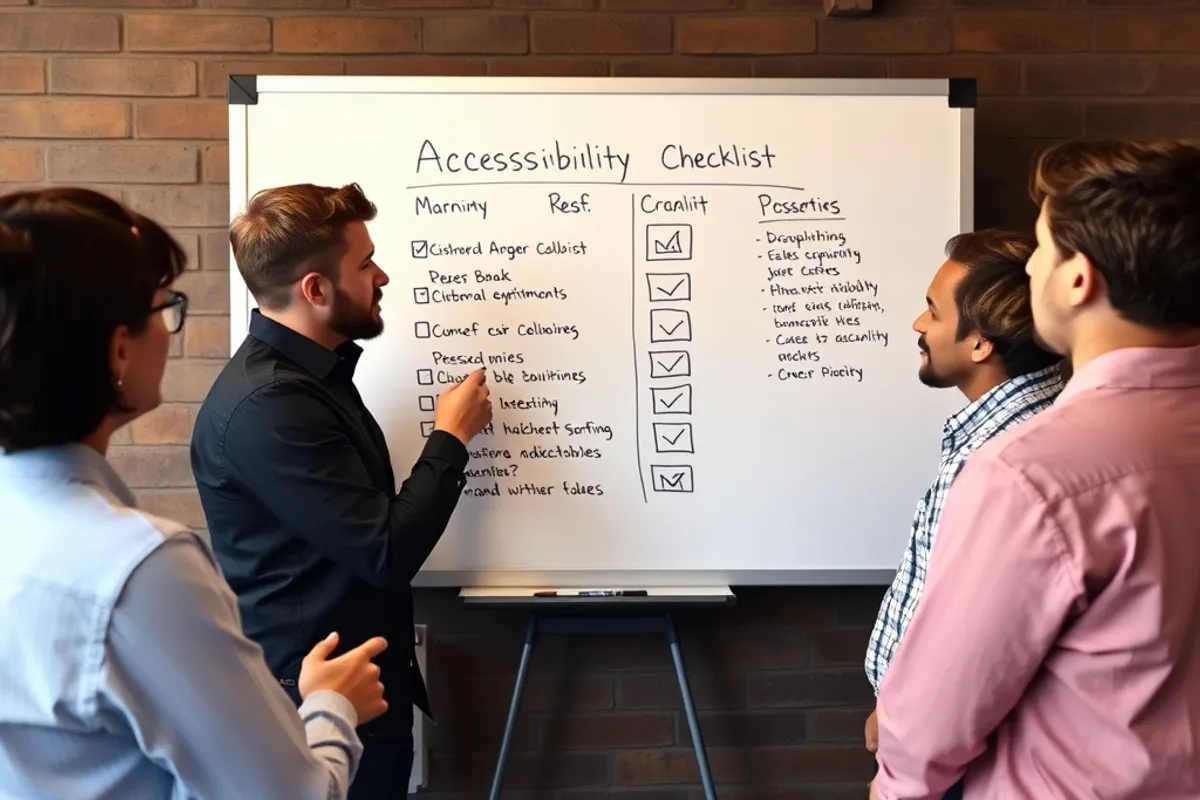
- Tab through every page and confirm a visible focus ring.
- Zoom to 200 percent and check that text reflows.
- Add labels to every form field and describe errors in text.
- Give every meaningful image useful alt text and hide decorative ones.
- Check heading order and make link text meaningful out of context.
For the visual side, read our fast layouts guide. For the content that fills the pages, see our Blogging section.
Written by Nadia Brooks for Rhetts Cheuvront. Tips or corrections? Contact the desk.